Customers
Written By Aladia Support
Last updated About 1 year ago
This guide outlines a comprehensive overview of customer transactions, subscriptions, and spending history. It includes a payment timeline chart, detailed customer table with filters and sorting options, and a scrollable modal for in-depth customer insights. Users can refine data using filters, sort by various criteria, and download invoices seamlessly.
Accessing the Payment Section
Click the Apps icon on the top navigation bar.
From the list of apps, select Payment.
Alternatively, you can directly click the Payment tab on the navigation bar.
Customers Tab
On the Payment page, click the Customers tab (next to the Payouts tab).
Payment Timeline Chart
A time-based chart displays Income and Spending trends for each day in the selected time period.
A dropdown shows the current time period, with an option to change it.
Left and Right arrows allow navigation between time periods.
Hovering over the chart shows a tooltip with exact Spending and Income amounts for the selected date.
The Income and Spending legends can be toggled to show or hide their respective data on the chart.
Charts
Total Balance
Displays the total balance.
Includes a View Details button that navigates to the Payout section.
Spending
Shows the total amount spent to date.
The View Transactions button redirects to the Spending section.
(Refer to the Spending documentation for more details.)
Income
Displays the total earnings to date.
The View Transactions button links to the Sales section.
(Refer to the Sales documentation for more details.)
Customers Table
The Customers table includes the following columns:
Customer Profile
Email
Total Spent
Transactions
Subscriptions
Active Subscriptions
Customer Since
Customer Stripe ID
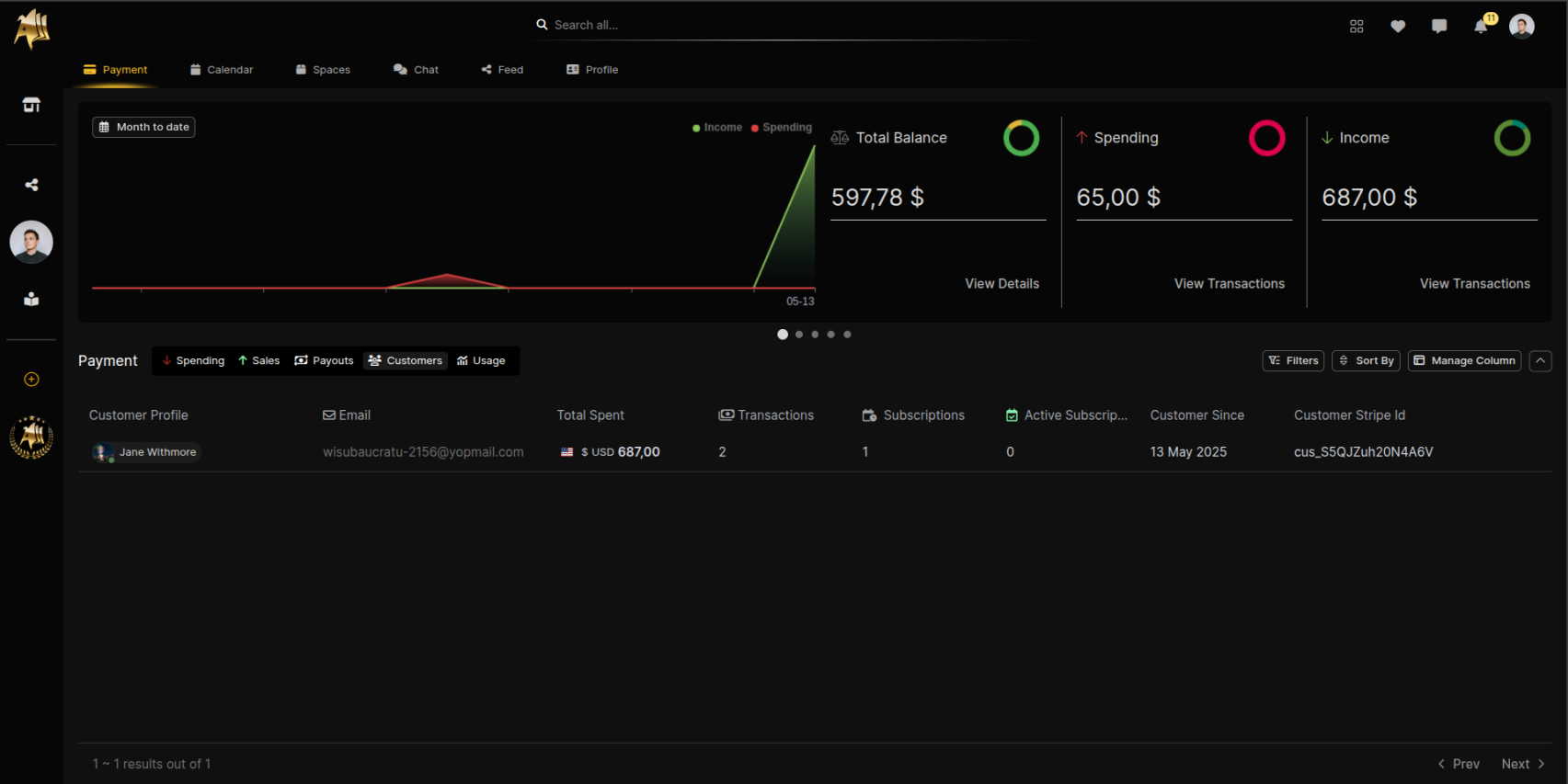
Click on any row in the table to open a scrollable modal displaying detailed information about the selected customer.
Controls
Filters button (opens a filtering sidebar).
Sort By button (opens a sorting sidebar).
Pagination controls at the bottom right of the table (Prev and Next).
Manage Column button.
Download Invoice icon (downloads the invoice).
Apply Filters
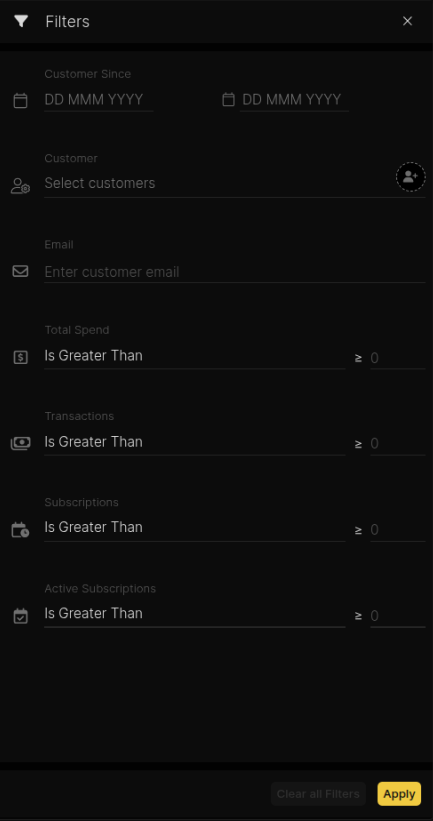
Click on the Filters button.
A sidebar with filter options will appear.
Use the available filters to refine the displayed customers, including:
Customer Since
Customer
Email
Active Subscriptions
Total Spend
Transactions
Subscriptions
Select the desired criteria and apply the filters to update the results.
Apply Sorting
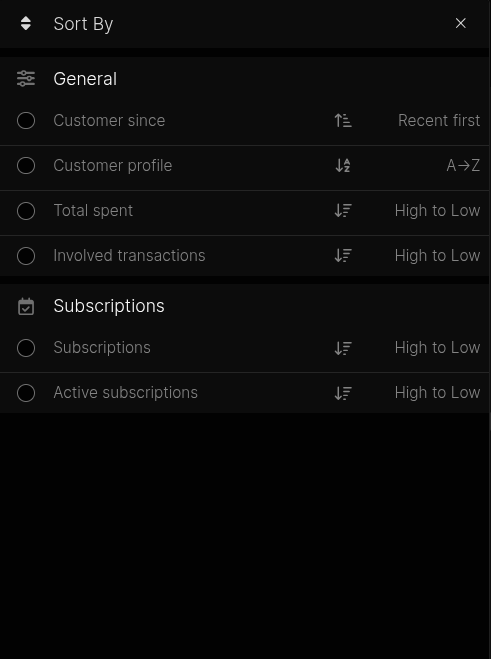
Click on the Sort By button. A sidebar with sorting options will appear.
Choose from the available sorting options:
General
Subscriptions
Apply the sorting option to reorder the displayed customers and subscriptions accordingly.