Stripe Embedded Components
Written By Aladia Support
Last updated About 1 year ago
This guide helps users navigate the Onboarding process to become a Teacher or create an Organization within the platform. It covers all necessary steps, including identity verification, bank account setup, and subscription to platform services. The onboarding flow ensures that users complete personal and organizational verification seamlessly, with guided Stripe integration for secure handling of sensitive information.
Navigate to the Onboarding Page
Click on the profile picture located in the top-right corner of the header bar.
Click on the Become a Teacher option, located under the Business section.
A sidebar appears select your country and click on the Verify Identity button.
You will be redirected to Stripe onboarding to fill in your information.
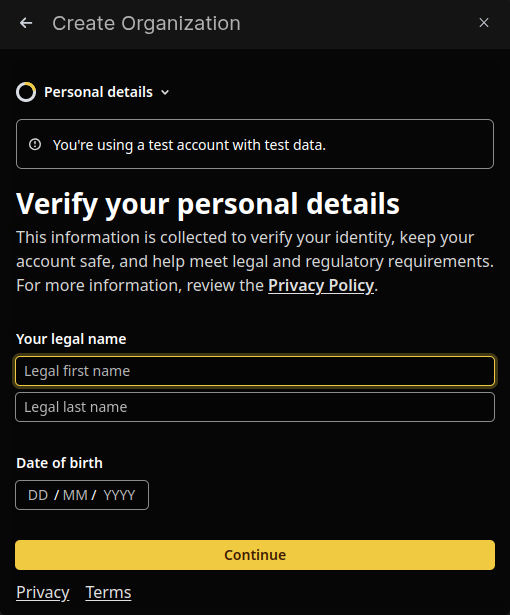
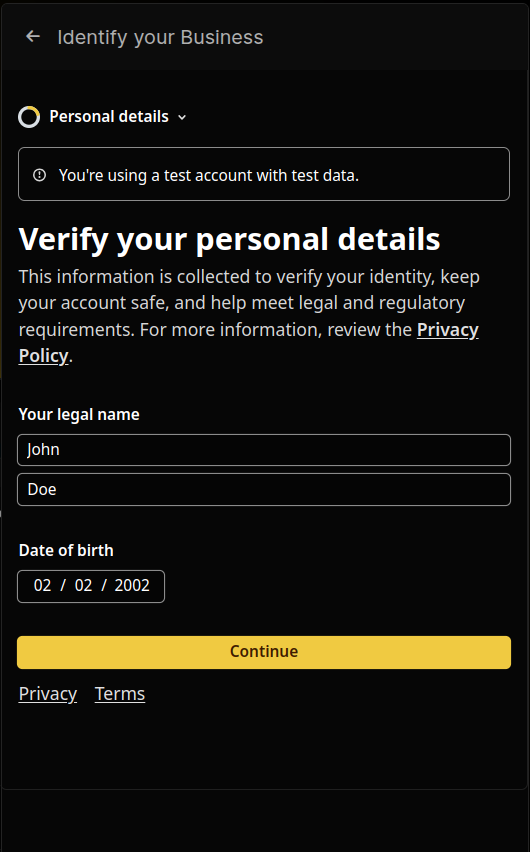
Enter legal personal information including:
Legal first name and last name.
Date of birth (DD/MM/YYYY).
Home address, including country, street address, apartment/unit, postal code, and city.
Click the Continue button to proceed.
ID Verification
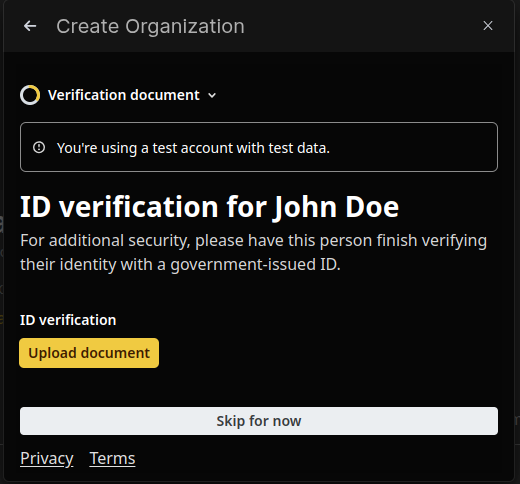
The system prompts users to upload a government-issued ID under their registered name (for example, John Doe).
Click Upload Document to proceed or Skip for now to bypass this step.
NOTE: Full onboarding requires ID verification.

Add Payout Account
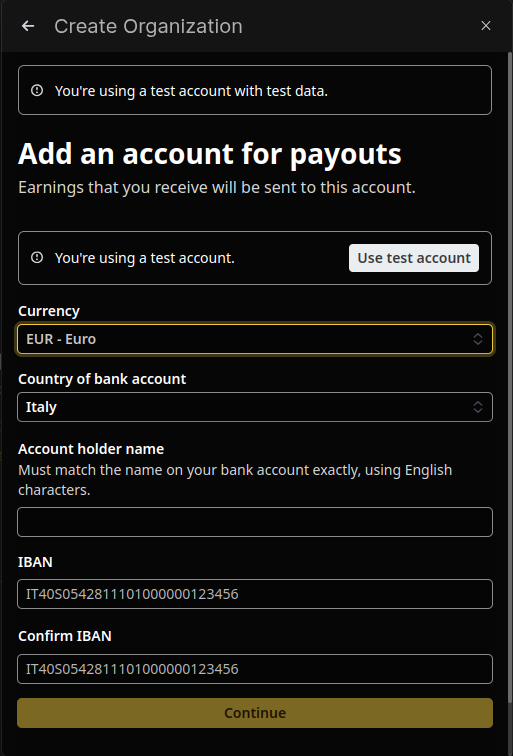
Provide your bank account details for payouts, Ensuring the account holder's name matches the bank records.
Enter the SWIFT/BIC code, account number, and confirm the account number.
Click the Continue button to save the details.

Review and Confirm
Verify all personal and payout details, ensuring accuracy before final submission. Click Agree and Submit to proceed.
Platform Subscription
Subscribe to platform services with:
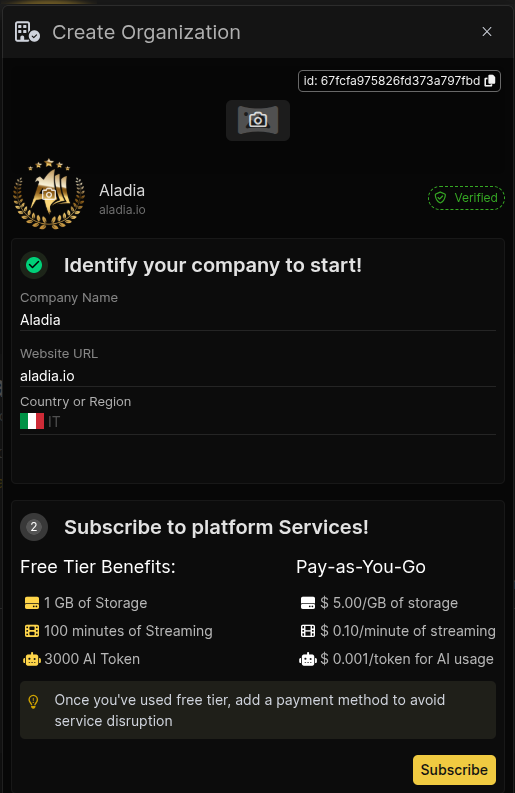
Free Tier Benefits:
1 GB storage
100 minutes of streaming
3000 AI tokens
Pay-as-You-Go Rates:
$5.00/GB for storage
$0.10/minute of streaming
$0.001/token for AI usage
This allows you to unlock additional features and avoid service disruption after the free tier is exhausted.
Click the Subscribe button to complete the process.

Organizational Onboarding Process
Access the Organization Creation Popup
Navigate to the left sidebar and click on the + button. A popup will appear, prompting you to start the process of creating an organization.
Fill Organization Details
Enter your organization name. Provide your organization website URL.
Select the country where your organization is based.
Add Visual Branding
Upload a profile picture for your organization.
Upload a custom cover image to enhance the organization's profile appearance.
Business Verification with Stripe
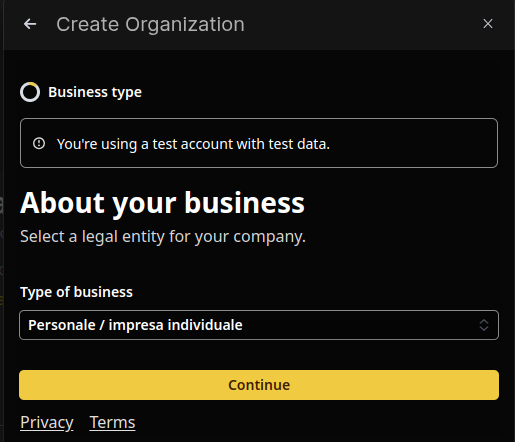
Click the Verify Business Identity button to initiate the Stripe onboarding process.
Provide essential business details including:
Business type
Name
Address
Contact information
Verify the identity of the business representative, including submitting valid government-issued documents.
Enter and confirm banking information to connect the payout account.
Review and submit all required information. Upon completion, Stripe redirects you back to the Aladia platform.
Subscription to the Aladia Platform
After returning to the platform, accept the subscription terms for the Aladia service.
At this point, the system updates the organization's status.