Sales
Written By Aladia Support
Last updated About 1 year ago
This guide outlines the process of tracking income within Aladia. It shows how users can visualize their income data using charts and tables, as well as apply filters to analyze their earnings effectively.
Sales
Access the Payment Section
There is a Apps icon on the top navigation bar. Click on the Payment option from the list of apps.
Alternatively, you can directly click the Payment tab on the navigation bar.
Sales Tab
The Payment page loads.
Click on the Sales tab next to the Spending tab.
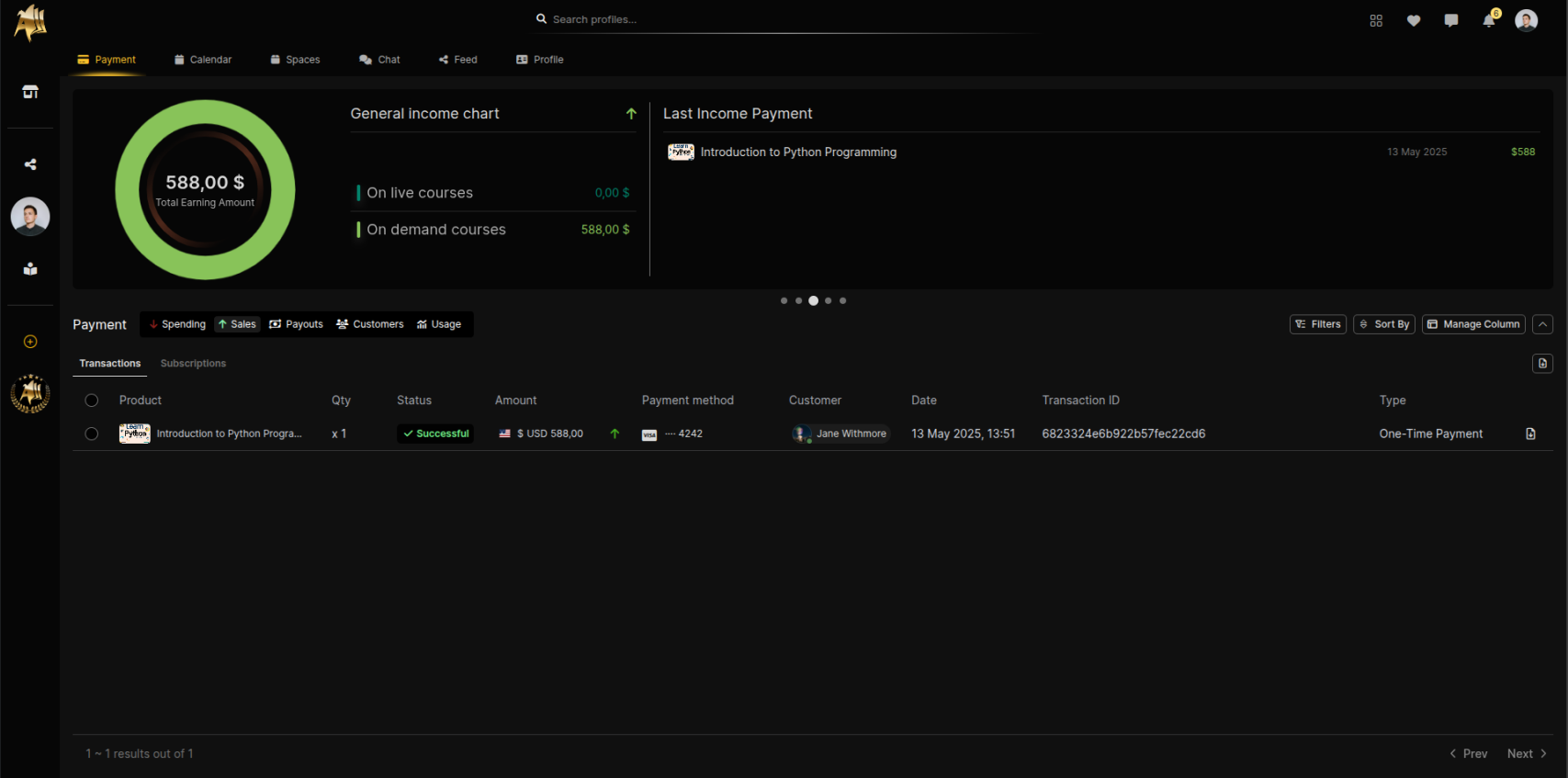
General Income Chart Section showing analytics of income from:
Live Courses
On-Demand Courses
Last Income Payment Section
Shows the last 10 payments of sold items.
The Sales tab includes two sub-tabs:
Transactions (active by default).
Subscriptions.
Tables
Transaction Columns include: Product, Status, Amount, Payment Method, Type, Seller, Occurred On, Date, Transaction
Subscription Columns include: Product, Status, Paid Installments, Planned Installments, Amount Paid, Total Amount, Next Installment, Single Installment, Frequency, Customer, Started On, Ends On, Subscription ID.
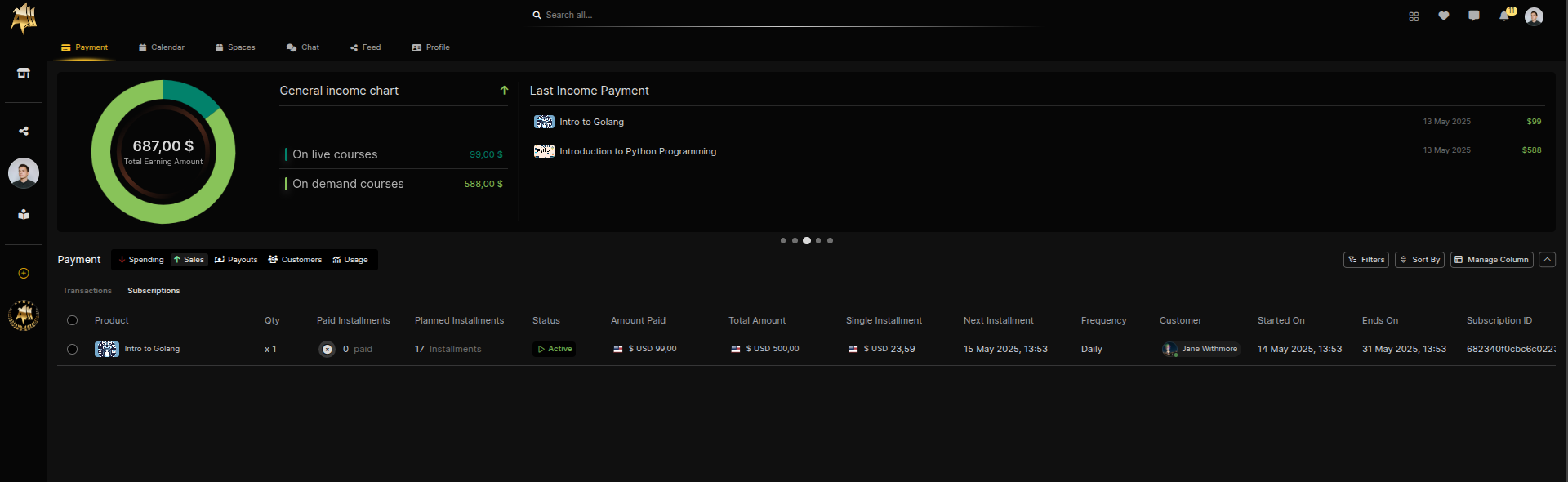
NOTE: If the account belongs to an organization, an additional Quantity column will be displayed in both Transactions and Subscriptions tables.
Click on any row in the table to open a modal displaying detailed information about the selected transaction or subscription.
The modal is scrollable, allowing users to view all relevant details.
Controls
Filters button (opens a filtering sidebar).
Sort By button (opens a sorting sidebar).
Pagination controls at the bottom right of the table (Prev and Next).
Manage Column button.
Download Invoice icon (downloads the invoice).
Transaction Details
You can click on each transaction to view more information, including associated fees.
Currently, Stripe deducts its processing fee directly from the total transaction amount.
Stripe's standard fees generally include:
2.9% + 30¢ for each successful transaction using domestic cards
+0.5% if the card is manually entered (typed in)
+1.5% if the card is international
+1% if currency conversion is required
You can find more details about these fees on Stripe's official pricing page.
In addition to Stripe’s fees, the platform also applies a 10% platform fee from the total transaction amount.
Example Fee Breakdown
Let’s say a user pays $100 using an international card, and currency conversion is required.
Stripe fee:
2.9% + 1.5% + 1% = 5.4% → 5.40∗∗Plus30¢fixed→∗∗5.70 total Stripe feePlatform fee:
10% of 100→∗∗10.00**Total fees:
Stripe fee (5.70)+Platformfee(10.00) = $15.70Net payout:
100−15.70 = $84.30
Download Invoice for a Transaction
Scroll to the right-most column of the transaction table.
Click on the Download icon next to the selected transaction.
The invoice will be automatically downloaded to your device.
Apply Filters
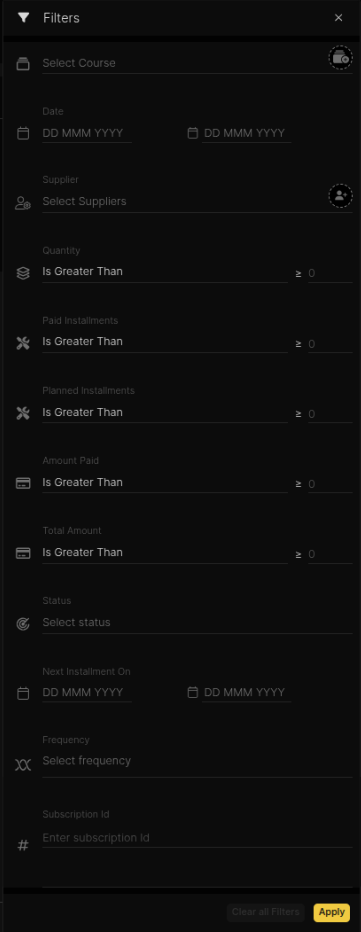
Click on the Filters button.
A sidebar with filter options will appear.
Use the available filters to refine the displayed transactions and subscriptions, including:
Course
Customer
Date
Amount
Quantity
Paid Installments
Planned Installments
Net Amount Received
Total Amount
Type
Status
Next Installment On
Frequency
Transaction ID
Subscription ID
Select the desired criteria and apply the filters to update the results.
Apply Sorting
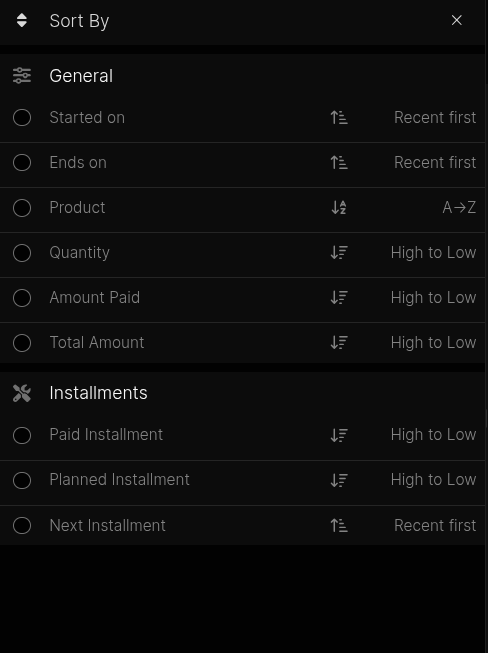
Click on the Sort By button.
A sidebar with sorting options will appear.
Choose from the available sorting options:
Date
Product
Quantity
Amount
General
Installment
Apply the sorting option to reorder the displayed transactions and subscriptions accordingly