Discount
Written By Aladia Support
Last updated Over 1 year ago
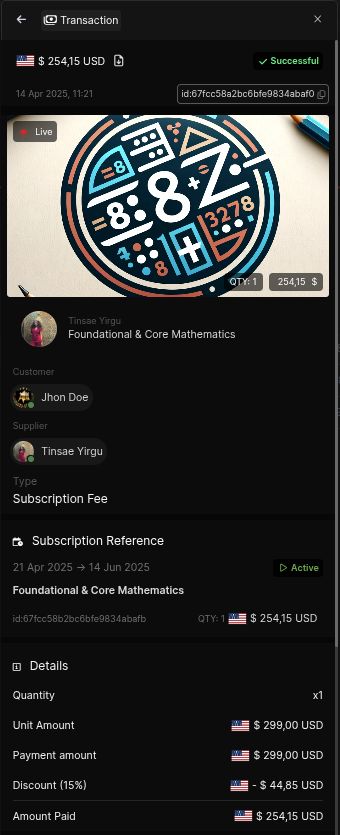
This guide helps users navigate the process of purchasing a discounted course from the marketplace. Users can apply a promo code provided by the course creator during checkout. After purchasing, they can navigate to the Spending tab under Payments, where the Transactions sub-tab is active by default. Clicking on a discounted transaction opens a modal displaying detailed information, including the type of discount—percentage discount (showing both the percentage and discounted amount) or fixed discount (showing the exact discount amount).
Buy a Course
Purchase a discounted course directly from the marketplace.
Apply a promo code provided by the course creator, if available.
Spending Tab
The Payment page loads. Click the Spending tab next to the Payment label.
The Spending tab has a Transactions sub-tab active by default, and also includes a Subscriptions sub-tab.
Transaction Submenu
Click on any discounted transaction row in the table to open a modal with detailed information.
A modal will open, displaying detailed information about the selected transaction, including:
Percentage discount (showing both the percentage and the discounted amount).
Fixed discount (showing the exact discount amount).
Was this helpful?
Still need help? Ask the team