Post
Written By Aladia Support
Last updated About 1 year ago
This guide helps users through creating, editing, sharing, and deleting posts on the platform. Users can create posts with text, images, videos, files, and location tags while selecting a visibility setting (Public, Restricted, or Private). Editing a post allows modifications to text, images, files, and location before publishing updates. Sharing offers options like copying a link, reposting, mentioning with a comment, or sending to users via chat. Deleting a post involves selecting the Delete option, confirming the action, and ensuring its removal from the feed and profile.
Create Post
Open the Post Creation Popup
Navigate to the Feed tab.
Click on the text box labeled Share what you think. A selector appears, allowing the user to choose between Post and Question.
Compose the Post
Click the text field in the input area to write text. Use (/) to add:
Formatted text (Bold, Italic, Underline, Strikethrough, Code)
Text styles (Normal, Different Headings, Bulleted List, Numbered List)
Text colors (Red, Orange, Yellow, and more)
Background colors (Red, Orange, Yellow, and more)
Click the (+) button to add attachments:
Images: Maximum size: (25MB)
Videos: Maximum size: (1.7GB)
Files: Maximum size: (100MB)
Loom: Recorded or uploaded
Location Map
Click the emoji icon to add:
Emojis: Includes search
GIFs: Includes search
A maximum of 20 files can be attached to a post.
Select Post Visibility
Choose one of the following privacy settings:
Public (visible to everyone)
Restricted (visible only to followers)
Private (visible only to the creator)
Publish the Post
Click the Send (▶) icon to publish the post. After the pop-up closes, a progress bar appears at the top of the feed.
When the progress bar finishes, the post is published and appears in the feed according to its selected visibility.
Images, Videos, and Loom recordings are displayed in a carousel with a full-view option. Multiple PDFs are shown in a pop-up format.
Edit Post
Access the Post
Navigate to either:
The Feed page, or
The Profile page under the Posts tab.
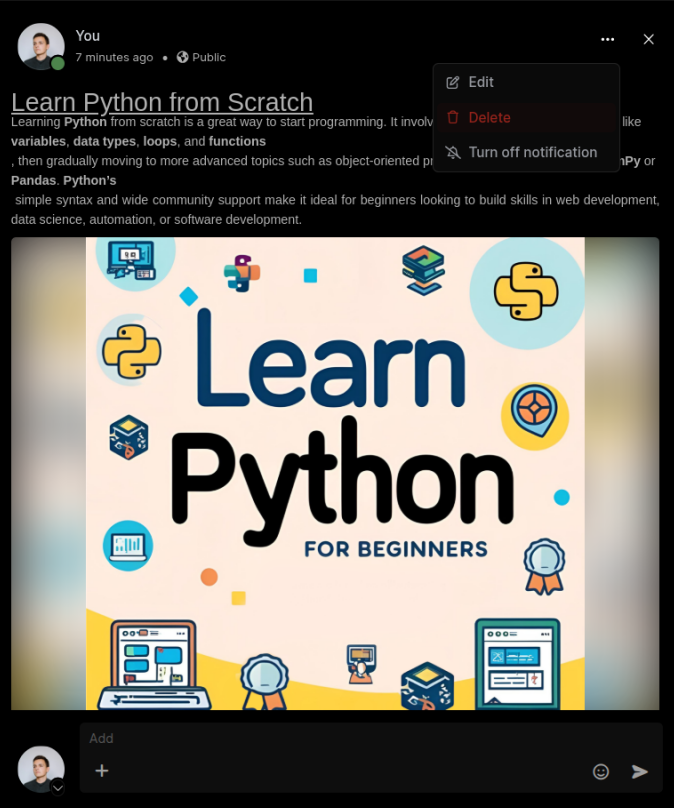
Locate the post you want to edit. Click on the three-dot menu at the top of the post.
Select the Edit button from the dropdown menu.
Modify the Post
The post creation popup will open with all the original elements intact including:
Text
Location
Uploaded files
Uploaded images
Apply the following changes:
Modify the text (formatting, GIF, emoji, and others).
Remove one image and replace it with another.
Remove all uploaded files.
Change the location attached to the post.
Publish the Edited Post
Click the Send icon to save and update the post.
Share Post
Open the Share Options
Navigate to the Feed page. Locate the post you want to share.
Click the Share button located at the bottom of the post. A pop-up will appears with 4 options.
Select a Sharing Method
Option 1: Copy Link
Click the Copy Link button to copy the post's URL.
Paste the link into a browser (even without an Aladia account) to verify accessibility.
Option 2: Repost
Click the Repost button to instantly share the post on your profile.
Reactions, comments, and share count will be recorded on the original post.
To remove a repost, click the Share button and select Remove Repost.
Option 3: Mention
Click the Mention button to add your thoughts related to the selected post.
A pop-up will open, allowing you to add your thoughts and mention users.
Click the Send icon to share the mentioned post.
Reactions, comments, and share count will be recorded on the mentioned post.
Option 4: Send to a User
Select multiple users to share the post via one-to-one chat.
A text box appears at the bottom where you can add a message.
Click the Send icon to share.
A toast notification confirms that the message was shared successfully.
Video Guide:
Delete Post
Open the Options Menu
Navigate to either The Feed page, or The Profile page under the Posts tab.
Locate the post to delete. Click on the three-dot menu at the top of the post.
Initiate Deletion
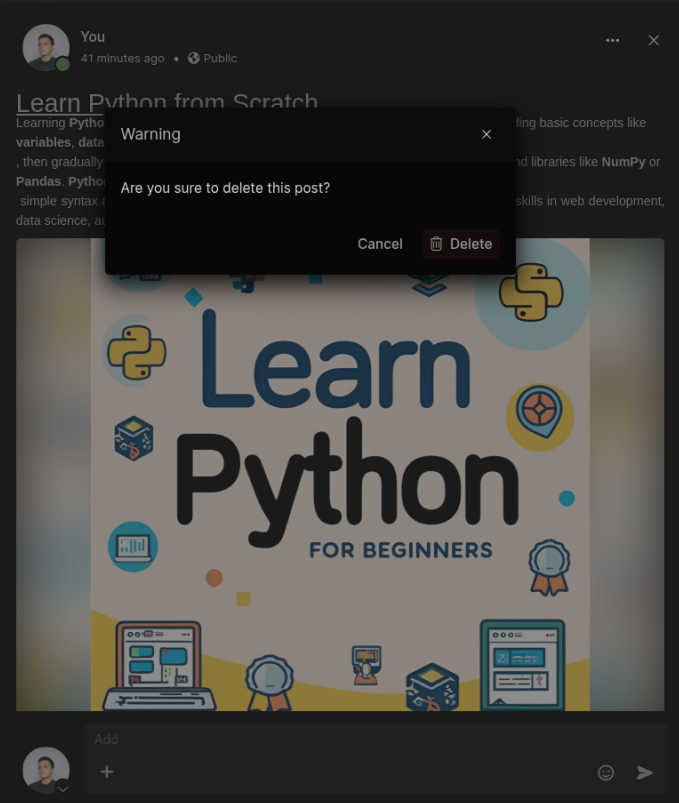
Click on the Delete button from the dropdown menu. A confirmation pop-up appears. Click the Delete button to confirm the action.Post Removal
The post will be permanently deleted and removed from both the feed and your profile.