Spaces
Written By Aladia Support
Last updated About 1 year ago
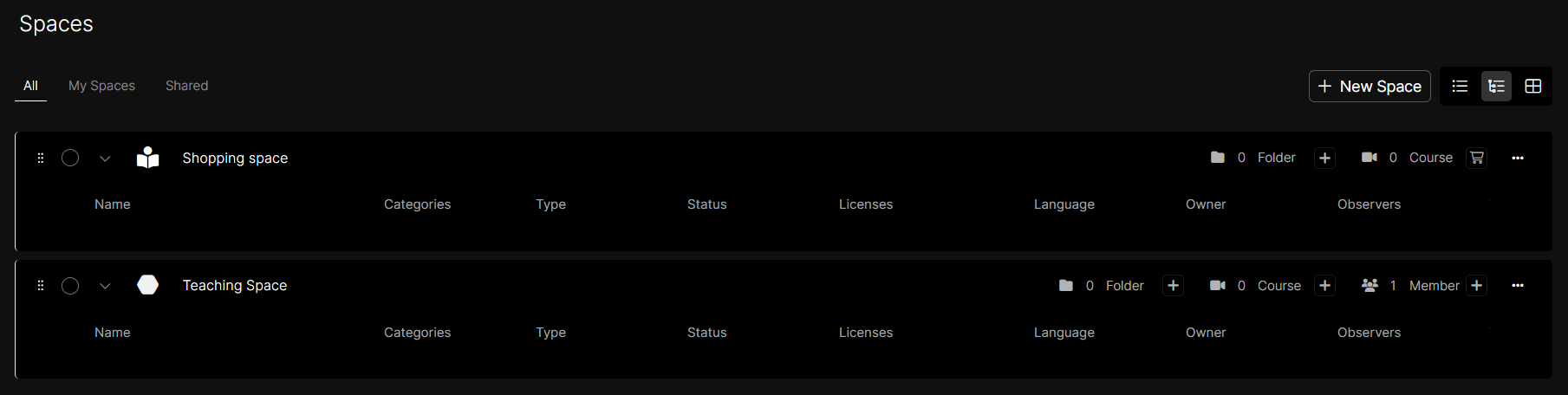
The Spaces View allows users to manage and navigate different workspaces efficiently. It consists of three main tabs: All, My Spaces, and Shared.
The All tab includes all spaces that created, the Shopping Space, and shared spaces.
The My Spaces tab lists spaces the user owns and the Shopping Space.
The Shared tab contains spaces the user has been invited to.
Users can create a new space through a guided process that includes onboarding (if required), configuration, and confirmation. Spaces start with default settings, including an editable name and icon. When editing a space, users can modify the title, color, and icon. Spaces can also be deleted, provided they don't contain any published courses.
Additionally, space content can be viewed in three ways:
Open View: displays all content.
Closed View: hides details.
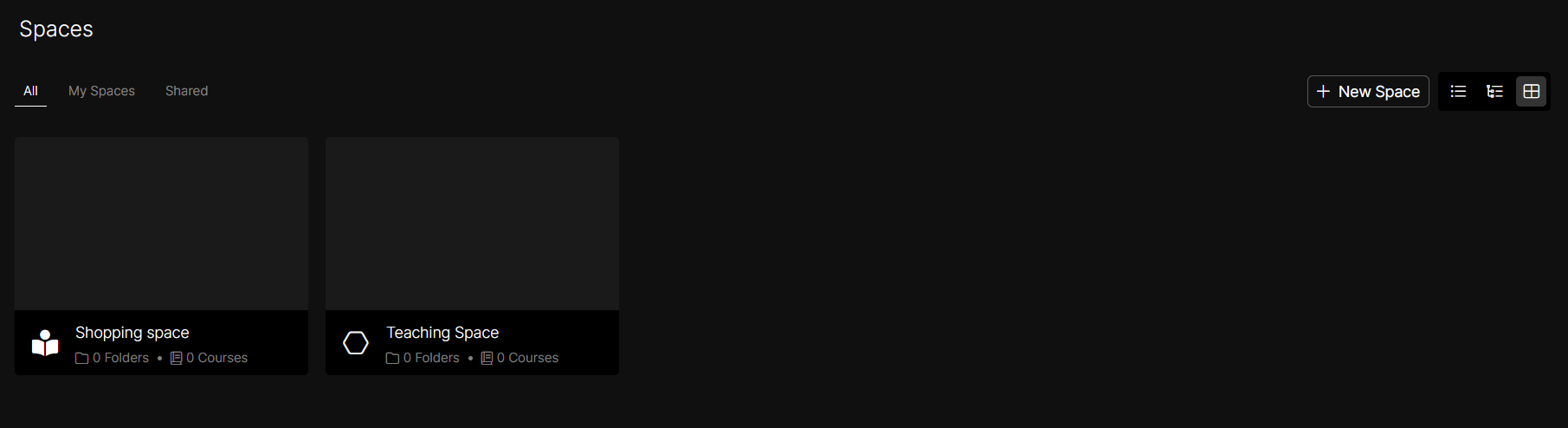
Grid View: provides a structured overview of spaces, folders, and courses.
These options give users flexibility in managing and organizing their spaces effectively.
Pre-requisites are needed:
If not previously completed, the user will need to finish the onboarding process for identification (Identity Verification).
View Space
There are three tabs in the Space View:
All
My Spaces
Shared
All Space
In the All tab, users will find three types of spaces:
Shopping Space: All the courses the user has purchased from the marketplace.
Spaces Created by the User
Spaces the User Is Invited To
My Spaces
In the My Spaces tab, the user will find two types of spaces:
Shopping Space: including all the courses the user has purchased from the marketplace.
Spaces Created by the User
NOTE: When the user creates a course, it will be added to this tab.
Shared Space
In the Shared tab, users will find only one type of space, spaces where they have been invited to, because these spaces do not belong to users and they have only been invited and assigned a role in that space.
Create Space
Navigate to the Space View section
Navigate to the Space View section. Click on the space where you want to create the folder.
Click on the New Space button to start the creation process.
Space Creation Panel
A panel appears on the right side to configure the new space.
A toast notification confirms that the space has been created successfully.
Video Guide:
View the Created Space with default settings
The new space appears as a card in the Space View, and its details are displayed in the side panel. This space will be visible in the All and My Spaces tabs.
The space is created with a default name and an icon, both editable.
The Members section lists the creator as OWNER, titled Space Creator.
NOTE: The space starts with 0 folders and 0 courses.
Edit Space
Access the Space Edit Option
In Grid View:
Click the Edit button near the breadcrumb, or
Click the Options button on the space card before entering the space and select Edit button.
In List View:
Click on the Options button on the space row and select Edit.
Modify Space Details
A side panel opens, allowing modifications to the space details.
Click on the first section of the panel (where the icon and title are displayed). A popup with a slide-in animation appears.
Edit the following fields:
Title
Color
Icon (option to upload a custom image)
Click the Save button to apply modifications.
Video Guide:
Delete Space
Locate the Space to Delete
Navigate to the Space View section
Card View: Hover over the space card to reveal the three-dot menu.
List View: Find the space row and locate the three-dot menu at the bottom right.
Confirm Deletion
Click the Options button and select Delete Space. A confirmation popup will appear. Click on the Delete Space button to proceed with the deletion. After confirmation, the space is permanently removed from the platform.
The space must not have any published courses in the marketplace; otherwise, deletion is not allowed.
The system prevents deletion if the space contains published courses. Once confirmed, the space will not appear in the Space View.
NOTE: Shopping space can not be updated or deleted from the profile.
Video Guide:
Types of Views on Space
There are three ways to view space content for spaces, folders and courses
Grid View
List View
List Open
Grid View
Click on the Space tab to open a space.
Click on the Grid view button to switch to grid view, allowing users to see folders and courses at a glance.
Grid View is the default view of all spaces.
List View
Click on the Space tab to open a space.
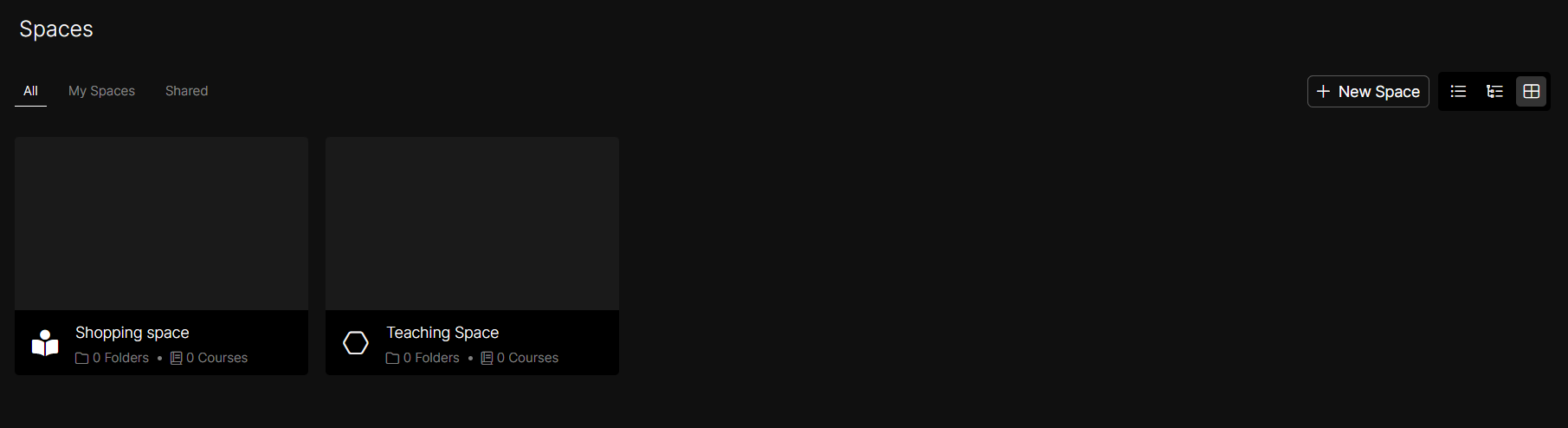
Click on the List View button to view all the spaces. The contents in this view are not visible.
This view is used to collapse all open spaces that are showing their contents.

List Open
Click on the Space tab to open a space.
Click on the List Open button to view the contents of the spaces.
This view is used to display all contents (folders, courses, members, and more) in detail.