Space Members
Written By Aladia Support
Last updated About 1 year ago
The Spaces View allows users to invite, manage, and remove members efficiently. Users can invite members by searching for users and assigning them roles such as Coordinator, Supervisor, or Member. Alternatively, users can invite members via a link, selecting a role before sharing the link for seamless onboarding.
Once members are added, their roles can be changed using the role selector in the Members section. Users can also remove members by selecting the option from the menu. The Members section provides a clear overview of invitation statuses, assigned roles, and membership updates.
These flexible member management options ensure smooth collaboration within spaces, allowing role-based access and control over course participation.
Invitation to Space as a Member or Coordinator via Builder
Navigate to Members section
Navigate to the Space Tab. Click on the three-dot menu to open the space builder.
Click on the space builder icon to open the builder. Scroll down to the Members section at the bottom of the builder.
Click on the Add User icon in the Members section. In the user search field, invite users to the platform.
Assign Roles and Send Invitation
For each selected user, use the dropdown to assign a role (Coordinator or Member).
After selecting users and roles, click on the Invite button to send invitations.
Return to the builder to see the list of invited users along with their invitation status.
NOTE: The Supervisor role is inherited; it cannot be assigned manually.
User Invitation to a Space
A user is invited to a space with a specific role as either a Coordinator or Member. Based on the assigned role, the user gains different levels of access to the chat rooms.
Video Guide:
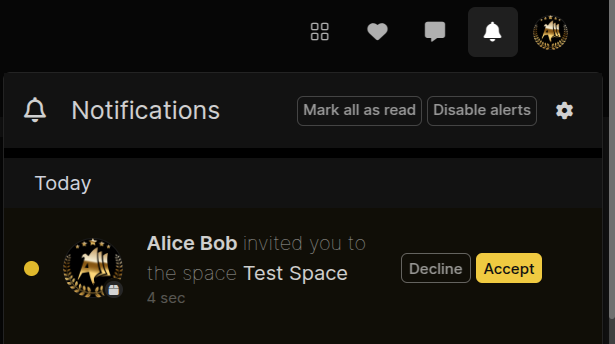
Accepting Space Membership invitations
Click on the Notification/Ring icon to view the invitation. Click on the Accept button to accept it.
Navigate to the Space view and Check the space appears in your spaces list.
Invitation to Space as a Member or Coordinator via Link
Navigate to Members Section
Navigate to the Space Tab. Click on the three-dot menu to open the space builder. Click on the space builder icon to open the builder.
Scroll down to the Members section at the bottom of the builder.
Add User via Link and Select Role
Click on the Add User icon in the Members section. In the pop-up, click on the Invite via Link button in the header.
In the new pop-up, select the role the user will have after accepting the invitation via link (for example: Coordinator or Member).
Share the Link
Copy the generated invitation link. Share the copied link with anyone you want to invite to the space.
Video Guide:
Change Role
Navigate to Members Section
From the top navigation bar or the left side panel, click the Spaces tab.
Under the All tab, locate the space to manage.
Click the three-dot menu on the space card and choose Edit to view space members. Scroll down to the Members section at the bottom of the builder.
Select User to Change Role
Find the user to change the role in the list of members.
Use the role selector next to the user's name to select a new role (for example: Coordinator, Member).
User’s role will be updated immediately upon the selection. The new role will be reflected in the Members section.
Video Guide:
Chat Access Gain as Supervisor on Space
Pre-requisites are needed:
The user must (Create an Organization) to set up the necessary structure.
For a detailed reference on managing user access within the IAM section, including navigation and user invitations,click here to view the full IAM documentation.
Video Guide:
Invited Users Flow
Switch to Organization Profile
Click on the Profile Picture of the organization. Clicking the organization profile will switch from an individual profile to the organizational profile.
Navigate to the Chat View
Option 1: Through the Marketplace
Navigate to the Marketplace. Click the Profile Picture from the left-side panel. Click on the Chat Tab. The Chat Page will appear.
Option 2: Using the Message icon
Click the Message icon in the top-right corner. The icon displays the number of unread messages. Click on the Chat View button to open the chat. The Chat Page will appear.
Option 3: Through the icon
Click the profile icon in the top-right corner. Scroll down and select the Message icon. The Chat Page will appear.
Send a Message as Supervisor
Click on the Space Room from the chat list to share the message. Inside a Space Room, type a message in the chat input field.
If users have multiple identities (for example: organization admin or organization),choose the identity by clicking the profile picture at the bottom right corner of the chat body then a Send As Selector pop-up will appear.
Select the appropriate profile (for example: Organization Name or Personal Profile). Click on the Confirm button to send the message under the selected identity.
If the message is sent as the organization, the organization's name will be displayed.
If the message is sent as a user within an organization, your name will appear followed by the organization’s name (for example: Your Name from Organization Name).
Video Guide:
Remove Members
Navigate to Members Section
From the top navigation bar or the left side panel, click the Spaces tab.
Under the All tab, locate the space you want to manage.
Click the three-dot menu on the space card and choose Edit to view space members. Scroll down to the Members section at the bottom of the builder.
Select User to Remove
Find the user to remove from the list of members.
Click the three-dot menu next to the user's name and select Remove from the dropdown menu.
The user is removed immediately and will no longer appear in the Members section.