Reels
Written By Aladia Support
Last updated About 1 year ago
This guide outlines the interactions available on the Organization Reel. It provides step-by-step guidance on how organization members can create media posts, navigate the media section, and engage with content shared by others.
Create a Reel
Navigate to the Organization Overview page by selecting the Organization tab in the navigation bar.
Click on the (+) New button. A menu with content creation options will open.
Select Reel from the available options to be directed to the media creation interface.
Upload a Cover Image to represent the media post and the primary media (video content).
Add a Description providing a brief summary or relevant context.
Adjust Visibility Settings:
Public: Visible to all platform users.
Private: Only visible to organization admins.
Restricted: Viewable by organization members only.
Click on the Publish button to post the media.
To cancel the creation process, click on the Discard button. This exits the media creation interface without saving changes.
Reel Interaction Options
To access media posts, navigate to the Organization page and select the Reel tab. Then, scroll through and explore the available posts.
Click the Volume icon to enable audio playback. Click the Expand icon to view the media in full-screen mode.
Click the three-dot menu to access more options (Edit, Delete, and Turn Off Notifications).
Click the Member Avatar or Name to navigate to the profile of the member who posted the media.
A Progress Bar is available below the media post to track and control playback duration.
Engagement Features
Like/Unlike: Click the Like button to react to the media post or click again to remove the reaction.
Comments: Click the Comment button to open the comment section and leave feedback or questions.
Share: Click the Share button to open the share popup, where the post link can be copied or shared via chat.
Viewers List: Click the Eye icon to see the list of members who have viewed the post.
Navigating to Active Members
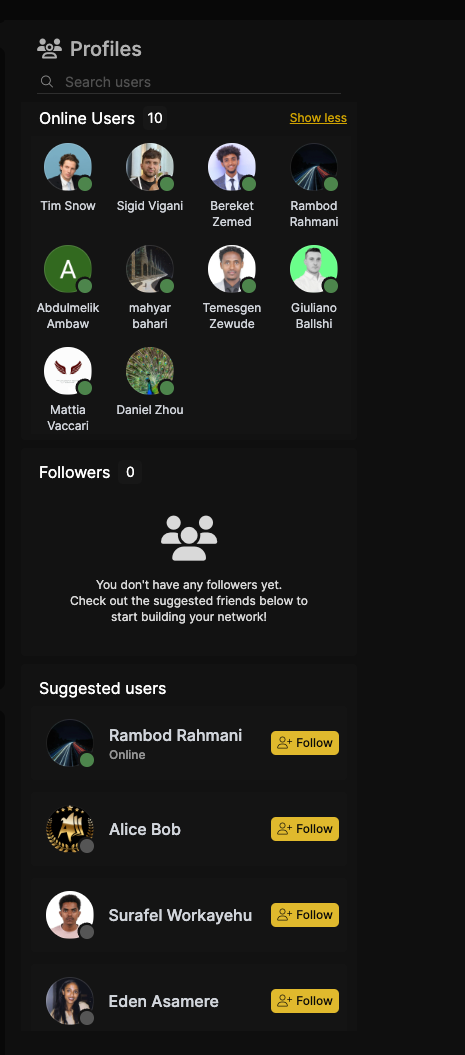
On the right-hand sidebar, find the Active Members section. Scroll through the list of currently online members.
Selecting a member's name redirects to their Profile page, where other members can Follow, Message, or View Contributions.
If a member has an Active Story, clicking on their avatar will open the story.
Click on the Show More button to expand the section to display additional members. Click on the Show Less button to collapse it back to default view.
A search bar labeled "Search Member" is available in this section. Members can type into the search bar to filter and find specific users.
Followers Section
Story Feature: If a member has a story, clicking on their avatar will open the story view.
Followers & Chats: Members can see who follows them and initiate chats directly from the right sidebar.
Member Interaction:
Click the Member's Name to navigate to their profile.
Click the Profile Avatar to view their story (if available).
Click the Message icon to be redirected to the chat page with that member.
Following Suggested Members
On the right-hand sidebar, find the Suggested Members section.
Scroll through the list of members recommended for following.
Click on the Follow button next to a member’s name. The button updates to "Following", indicating the action was successful.
The followed member’s updates and posts will now appear in the feed.