Course Calendar
Written By Aladia Support
Last updated About 1 year ago
This guide enables users to efficiently manage lectures and events within the calendar by creating, editing, and deleting single or repeated events. Users can create events by selecting a time slot and entering details such as title, duration, co-hosts, location, description, and attachments; with options to assign them to a course calendar, link them to a conference room, and set recurrence rules. Editing allows modifications to event details, which can be applied to a single occurrence, future events, or the entire series ensuring updates are reflected in the Builder. Deletion follows a similar process, enabling users to remove specific events or entire series, with changes synchronized across the calendar and Builder. This streamlined system ensures organized and efficient event and lecture management.
Open Builder
Check Course Presence in Spaces
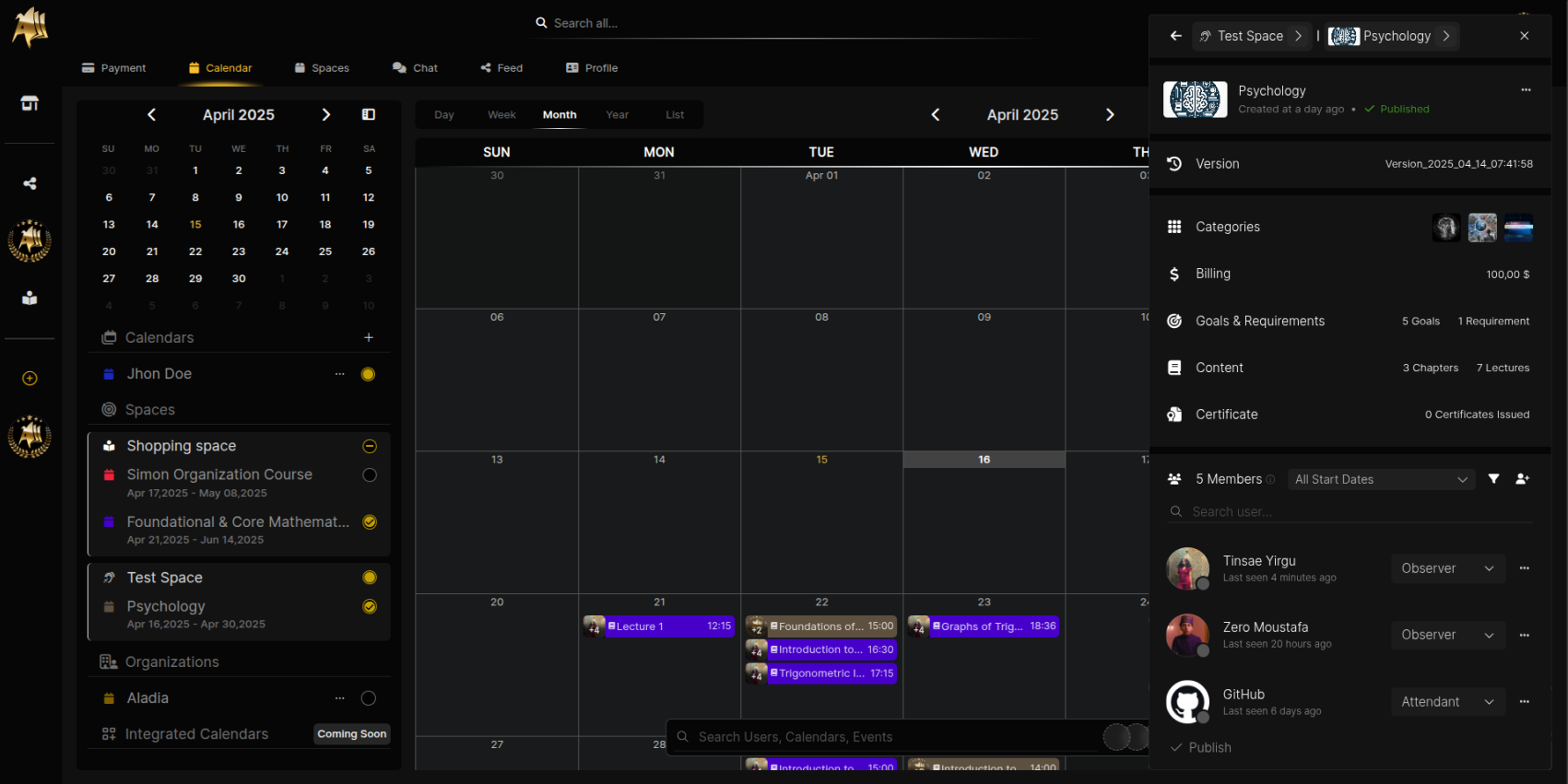
Navigate to the Calendar tab in the navigation bar. In the Left Side Panel, go to the Spaces section.
Under Shopping Space inside Your Space, verify that the Courses you created are listed under their correct Space.
Open the Builder
Hover over a Course in the list. The Course Title should be underlined on hover. Click on the Course Title.
Builder Opens in the Correct Position
The Builder should open on the right side, in the same position as when accessed from the Space.
Create Lecture and Events
Create an Event
Navigate to the Calendar tab in the navigation bar. Click on the Calendar Grid at the desired date and time.
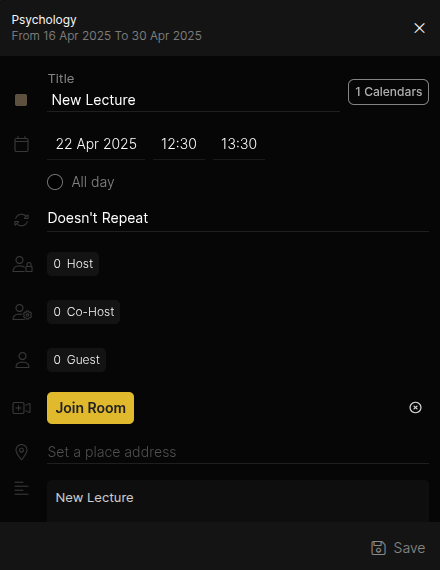
A preview of the event will appear. The Event Creation Pop-Up will open.
Fill in Event Details
Enter the Title in the Title Field. Edit the duration near the Calendar Icon.
Check the "All Day" checkbox if needed. In Co-host section, click Add User Icon, then select users and click Invite.
Add address after Location Icon. Add description (optional). Click Insert Attachment to upload files (max 5).
Select the Course Calendar
Click Choose Calendars button inside the Title Field.
Search and multi-select, then select Course at the bottom. Click Confirm.
Assign a Conference Room
Click Create Meet Room (changes to Join Room). Click Join Room to open the conference.
Click Save button in the popup.
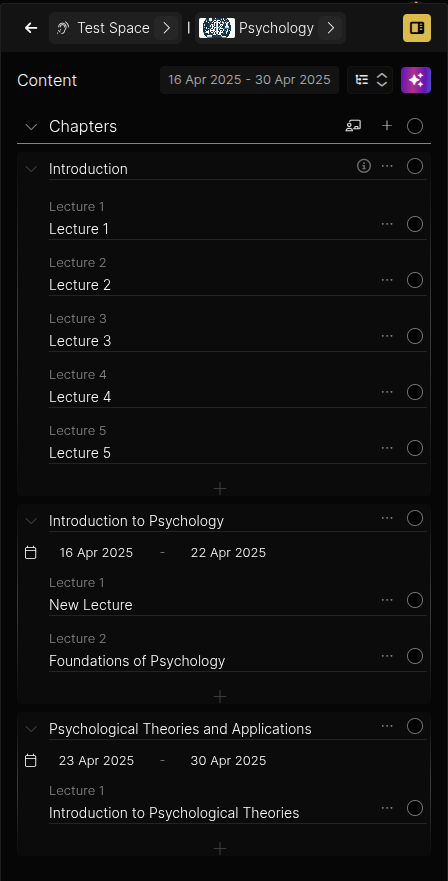
Open the Builder and go to Content. A new chapter should be created:
Duration: From start to end of the course.
Lecture should match event details.
Create Repeated Lecture and Events
Create an Event
Navigate to the Calendar tab in the navigation bar.
Click on the Calendar Grid at the desired date and time. A preview appears. Event Creation Pop-Up opens.
Fill in Event Details
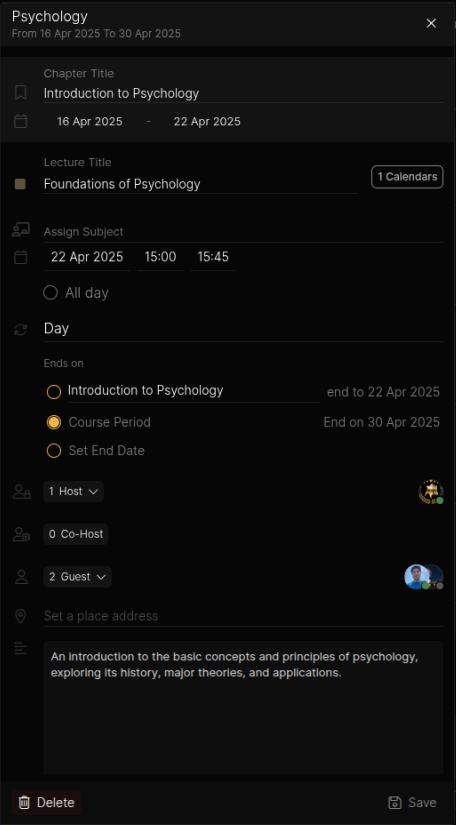
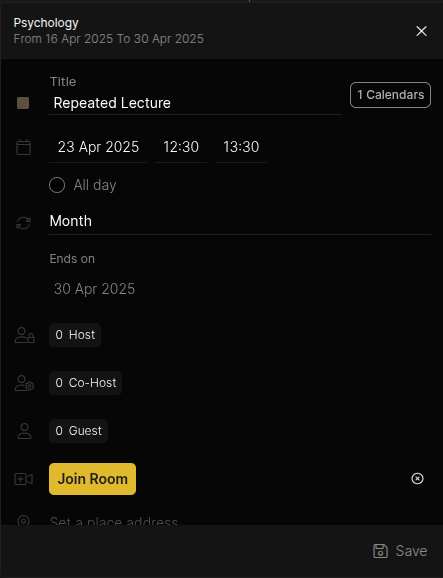
Enter Title, Edit duration, Select All Day if needed.
Click Repeat (Reload Icon) and choose:
Doesn't Repeat
Day
Week
Month
Custom
If repeating, Click Ends On to set stop condition:
Choose a Chapter
Course Period
Set End Date
In Co-host section, Click Add User Icon, then Click Invite. Set address, description, and Insert Attachments (max 5).
Select the Course Calendar
Click Choose Calendars, select course, and click Confirm.
Assign a Conference Room
Click Create Meet Room → Join Room. Click Save
Check course calendar for repeated events. Switch cycles to verify appearance.
In Builder > Content, ensure:
A chapter is created.
Lectures match event details.
Edit Lecture and Events
Click on an Event
Navigate to the Calendar tab. Click the event from the grid.
A preview and the Event Editing Pop-Up will open.
Edit the Event Details
Edit Title, Edit duration, Select All Day if applicable.
In Co-host section, click Add User Icon, then click Invite.
Edit address and description. Click Insert Attachment to upload files.
Edit the Course Calendar
Click Choose Calendars, change course, and click Confirm.
Click Save. Ensure event reflects new time. Verify across all cycles.
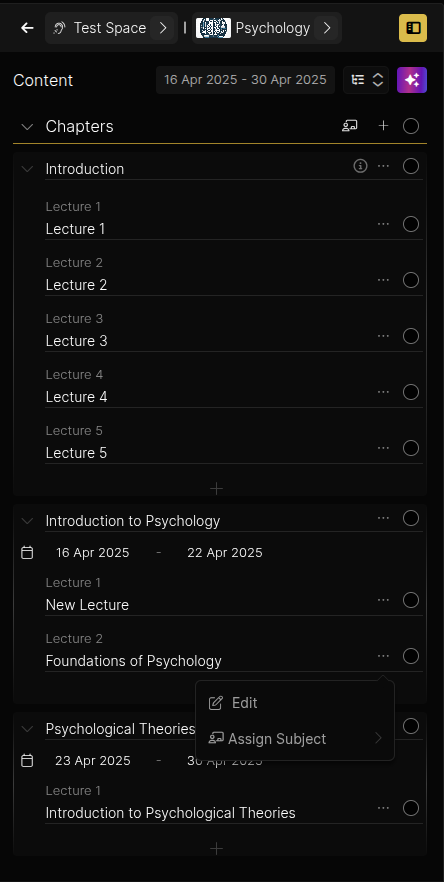
Open Builder > Content. Ensure Lecture is updated in all cycles.
Delete Lecture and Events
Click on an Event
Navigate to the Calendar tab.
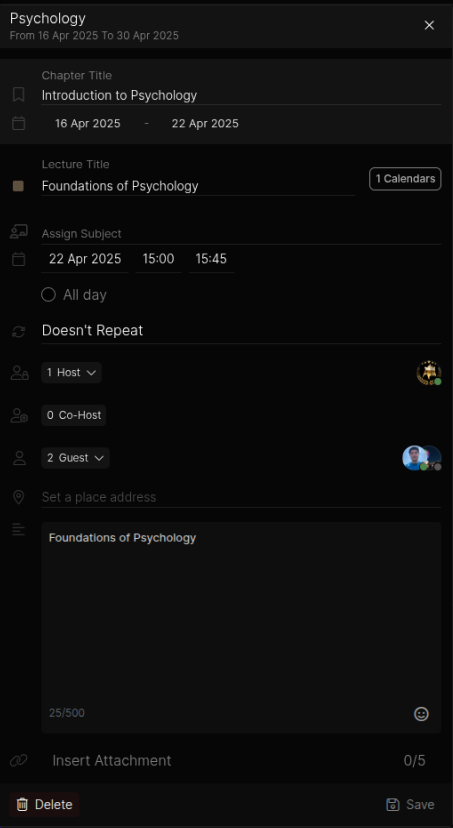
Click the event from the Calendar Grid. Event Editing Pop-Up will open.
Delete the Event
At the bottom left, click Delete Icon with Delete Label.
The icon shows loading and the event is deleted.
Verify Event Deletion
Open Builder > Content
Ensure event is deleted from calendar and all cycles.
Delete Following and All Repeated Lecture and Events
Click on an Event
Navigate to the Calendar tab.
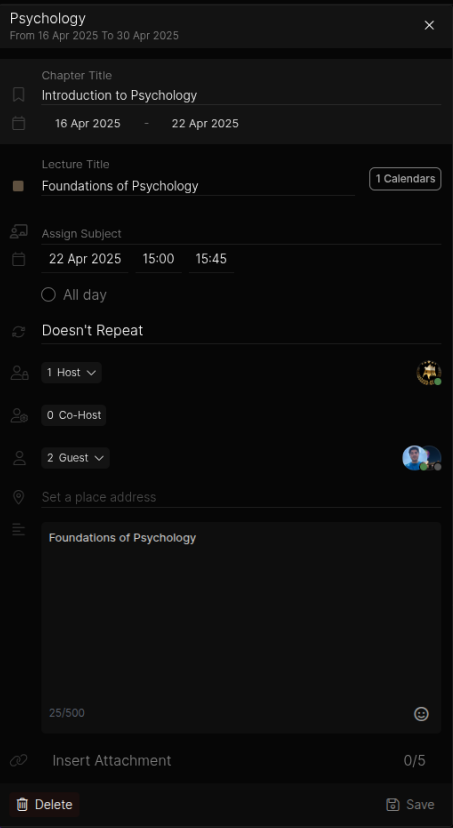
Click the event from the Calendar Grid. Event Editing Pop-Up will open.
Delete the Event
At the bottom left, click Delete Icon with Delete Label.
Confirmation Pop-Up appears.
Select This and following events or All
Confirm Deletion. Events should be removed accordingly.
Open Builder > Content. Ensure deleted events are no longer present in all cycles.