Mute Chat
Written By Aladia Support
Last updated About 1 year ago
This guide helps users understand the Mute and Unmute functionality, allowing them to manage chat notifications efficiently. Muting a chat disables notifications for new messages, ensuring a distraction-free experience, while unmuting restores notifications for incoming messages. Users can access this feature through the Info Panel by selecting the Mute/Unmute option from the chat settings. This provides greater flexibility in handling conversations based on priority and preference.
Mute & Unmute a Chat
Navigate to the Chat View
Option 1: Through the Marketplace
Navigate to the Marketplace. Click the Profile Picture from the left-side panel. Click on the Chat Tab. The Chat Page will appear.
Option 2: Using the Message icon
Click the Message icon in the top-right corner. The icon displays the number of unread messages. Click on the Chat View button to open the chat. The Chat Page will appear.
Option 3: Through the menu icon
Click the menu icon in the top-right corner. Scroll down and select the Message icon. The Chat Page will appear.
Mute the Chat
Click on the chat to mute. Click on the three-dot icon in the top-right corner of the chat body.
Alternatively, click on the name of the room or the person you are chatting with at the top of the chat body to open the Info Panel.
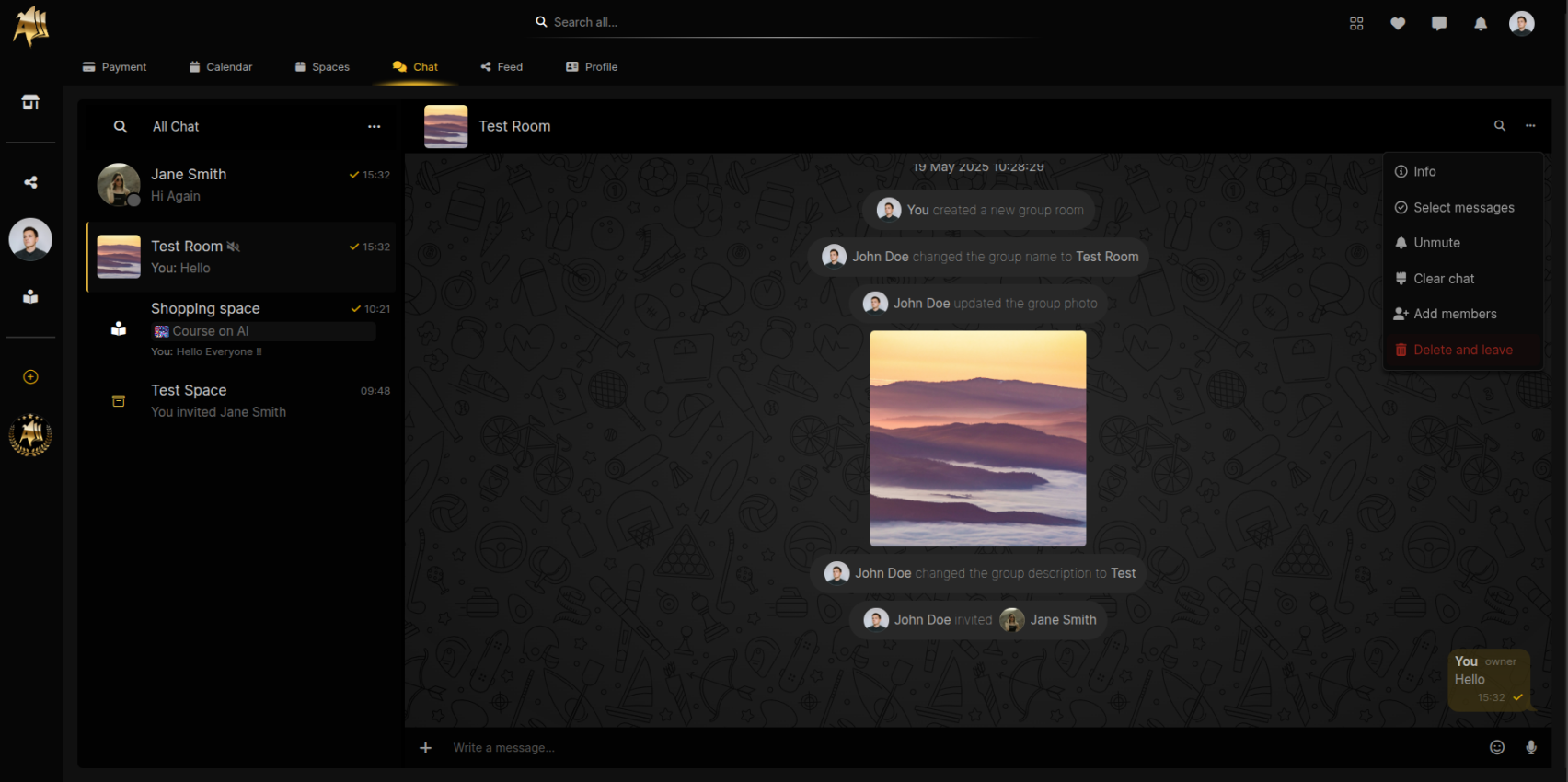
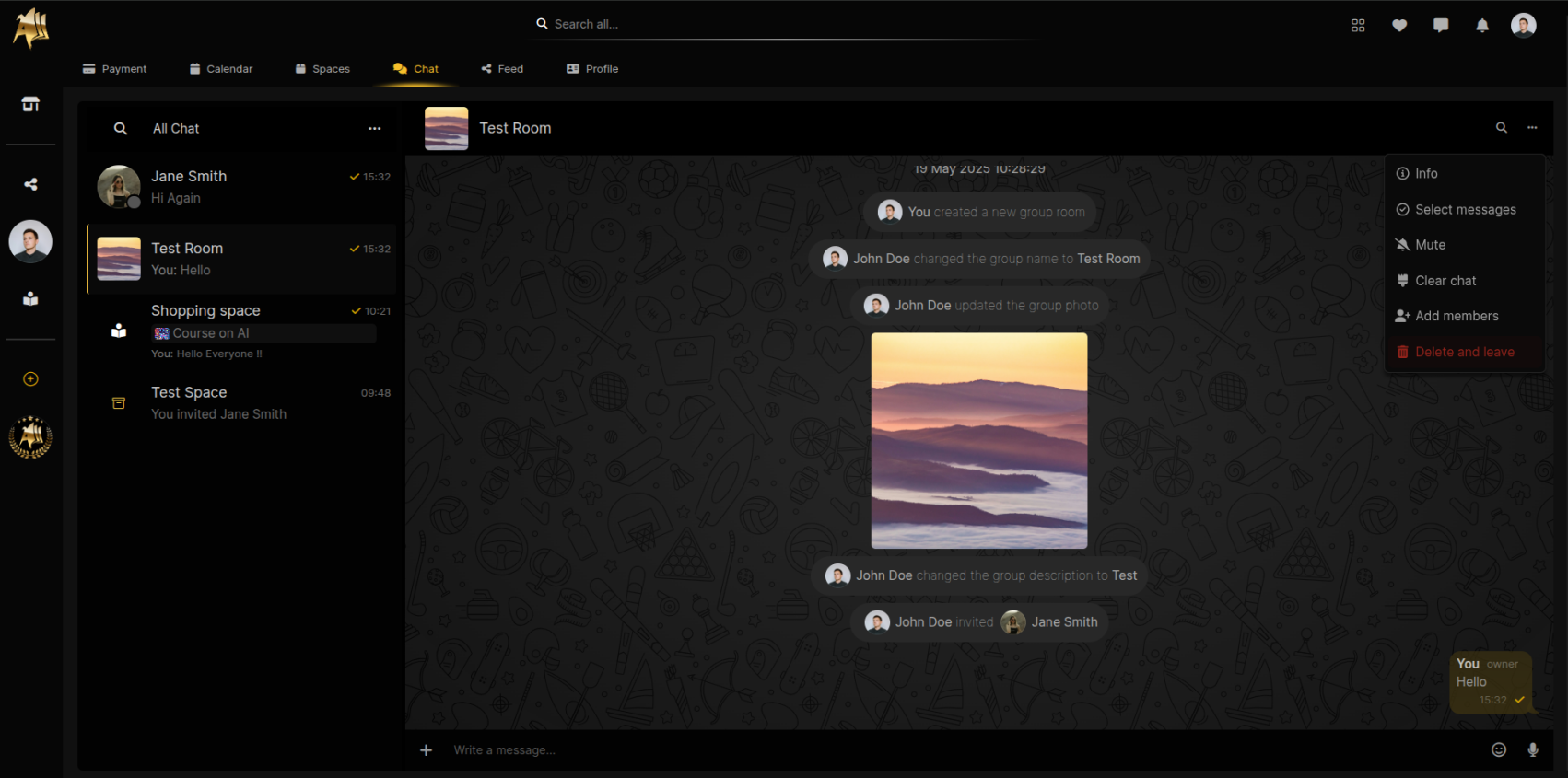
A dropdown menu will appear with options: Info, Select Message, Mute, Clear Chat, and Delete Chat.
Click on the Mute button to disable notifications for the chat.
Unmute the Chat
Click on the chat you want to unmute. Click on the three-dot icon in the top-right corner of the chat body.
Alternatively, click on the name of the room or the person you are chatting with at the top of the chat body to open the Info Panel.
A dropdown menu will appear with options: Info, Select Message, Unmute, Clear Chat, and Delete Chat.
Click on the Unmute button to re-enable notifications for the chat.