Q&A
Written By Aladia Support
Last updated About 1 year ago
This guide outlines the process for navigating, filtering, interacting with, and managing Q&A entries on Aladia. Users can access the Q&A section, view questions and status summaries, filter questions, ask new ones, and verify question details.
View Questions and Status Summary
Access the Q&A Section
Navigate to the Profile Page by clicking on the profile picture in the left sidebar.
Locate and click on the Q&A Tab in the navigation bar.
View Questions and Status Summary
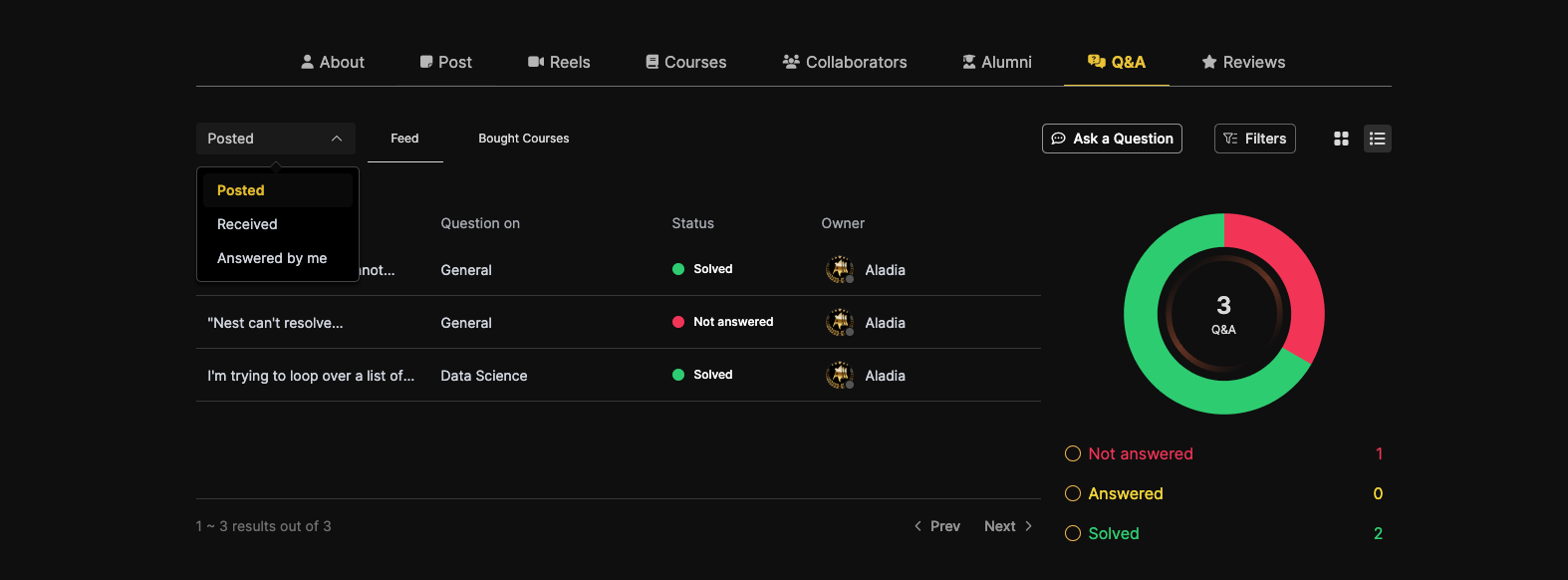
The Status Summary is displayed on the right side of the page, showing:
A circular gauge with the total number of Q&A entries.
A breakdown of question statuses with color-coded indicators.
The number of questions in each status category.
Click the dropdown on the left to select a question category: (Posted, Received, or Answered by Me), then use the tabs on the right of the dropdown to filter within the selected category.
Status codes for each dropdown option:
Posted: Not Answered, Answered, Solved
Received: Not Answered, Answered, Answered by Teacher, Solved
Answered by Me: Answered, Solved
Ask a New Question
Click on the Ask a Question button. A popup form appears, where users can input:
Question content
Select a topic
Attach media (Photo or Video, File, Loom recordings)
Set visibility using the dropdown (Private, Restricted, Public)
Click the Send icon to submit the question.
Filter Questions
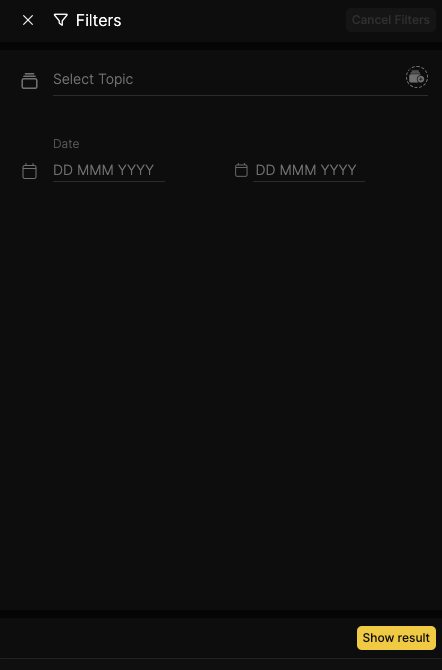
Click on the Filters button located next to the Ask a Question button. A Sidebar opens from the right side of the screen.
From the sidebar, select the desired filter options:
Topics/Courses
Date range
Click Show Result to apply filters and update the displayed questions.
To reset filters, click on the Cancel Filters button to clear all selections.
Interact with Question Details
Clicking a Question Entry reveals all associated details, including:
Answers
Related course information
Manage Questions and Toggle Notifications
Access the Q&A Section
Click the profile picture in the left sidebar to open the profile page.
Locate and click the Q&A tab in the navigation bar.
Click on the Grid View button next to the Filters button to change the layout format.
Edit a Question
Click the three-dot menu on the question header.
Select Edit from the dropdown. A popup form appears to modify the question details.
Click the Send icon to confirm changes.
Delete a Question
Click the three-dot menu on the question header.
Select Delete from the dropdown. A confirmation pop-up appears.
Click on the Delete button to confirm and permanently remove the question.
Toggle Notifications
Click on the three-dot menu on the question header.
Toggle Turn On/Turn Off Notifications based on user's preference.
Filter Results
Select a specific date range (for example: last week, last month). The results display only questions posted within the selected time frame.
Select a specific status (for example: Answered, Not Answered, Solved, Answered by Teacher). The results shows only questions with the selected status.
Choose a source (for example: Feed, Bought Courses, Created Courses). Only questions from the selected source are displayed.
Select a question type (for example: Posted, Received, Answered by Me). The results shows only the displayed questions that match the selected type.
Apply multiple filters (for example: date + status). Confirm that the results satisfy all selected criteria.
Remove individual filters by clicking the X icon on each filter chip.