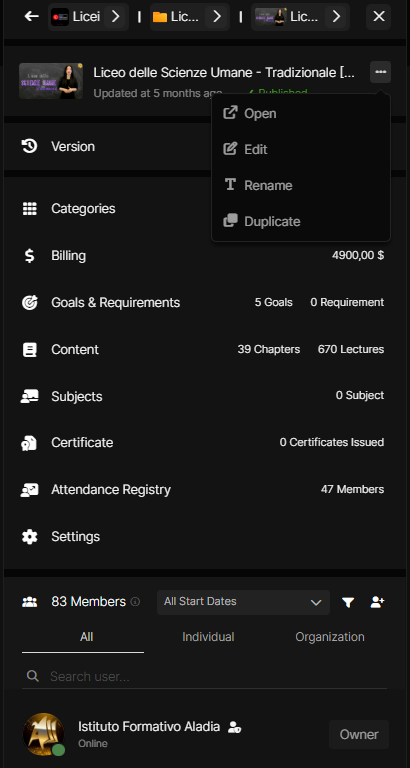
Course Actions Menu
This guide outlines the management flows and interactions available via the Course Actions Menu. It provides step-by-step guidance on how creators can access and utilize course-level tools to streamline their workflow within the builder.
Written By Aladia Support
Last updated 7 months ago
Accessing the Course Actions Menu
Navigate to the Course Builder
Open the Course Builder from your dashboard.
Locate the Course Name displayed at the top of the builder interface.
Click on the three-dots (⋯) icon situated next to the course title. A contextual menu will appear with available management actions.
Available Actions
Open
Click on the Open option to launch the public or full course view.
Use this to quickly preview the course exactly as it is currently configured for learners.
Edit
Click on the Edit option to open the comprehensive course editing flow.
This allows you to modify core details, including:
Course Title and Description.
General Settings and Visibility.
Curriculum Structure.
Rename
Click on the Rename option to change the course name directly within the menu.
Enter the new title in the input field. The update is applied immediately across the entire platform.
Duplicate
Click on the Duplicate option to create an exact copy of the current course.
This is useful for reusing an existing structure or template as a starting point for a new course module.
NOTE: This menu is designed to centralize common management actions, improving speed and clarity while working inside the Course Builder.