Highlights
Written By Aladia Support
Last updated About 1 year ago
This guide covers creating, editing, sharing, deleting, and engaging with Highlights. Users can create a Highlight by uploading content, adding a cover image and title, applying filters or effects, and setting audience preferences before publishing. They can edit captions, stickers, and settings, share via direct links or messages, and delete Highlights with confirmation. Users can also engage by commenting on stories within Highlights to share feedback and participate in discussions.
Creating a Highlight
Select Highlight from the Popup Menu
Navigate to the Feed page. At the top of the Stories carousel, click the + New Story button.
A Pop-Up will appear with three tabs: Story, Reel, and Highlight. Select the Highlight tab.
The pop-up is divided into two sections:
Upload Highlight Content
Audience Options: Choose between Private, Restricted, or Public.
Preference Selection Pop-up
A chevron icon below the profile avatar opens a pop-up after a highlight is created, allowing users to select a personal or organizational account.
The highlight is created based on the selected account type.
The pop-up has two buttons:
Confirm: Applies the selection.
Cancel: Keeps the initial account.
Left Section (Preview)
Cover Section: Add a title and upload a cover image.
Story List Section: Displays all stories in the highlight.
Drag Icon: Reposition stories.
Edit Icon: Modify stories.
Right Section (Editor)
Upload Media / Empty Story: Choose a media file or create an empty story.
Editing Options:
Trim: Adjust the story duration.
Crop: Resize or change the aspect ratio.
Filter & Fine-tune: Apply effects.
Annotate & Sticker: Add text and stickers.
Fill: Select a background for images.
Frame & Redact: Enhance images or empty stories.
Revert Icon: Undo changes.
Upload from Gallery
Choose a media file from the gallery. A list of available media appears.
Select a media file and click Confirm to publish it as a story. Click Cancel to keep the original settings.
Story Highlight Management
Created stories appear in a horizontally scrollable list.
Each story includes:
Copy/Duplicate Icon: Instantly duplicate a story.
Position Selector Icon: Jump to a specific story.
Edit and Delete buttons:
Delete: Opens a confirmation pop-up.
Edit: Opens the editor for modifications.
Cancel: Removes the current story setup.
Preview: Enabled after media is uploaded; opens a full-screen preview.
Publish: Disabled by default and activates after media is uploaded.
Editing a Highlight
Accessing Highlight from the Profile Section
Navigate to your profile page. Below the horizontally listed tabs, view the created highlights. Tap the three-dot menu at the top of the highlight. A menu appears with various options.
Select Edit to open the editor and make changes.
Sharing a Highlight
Open the Share Options
From the displayed highlights, select the desired one.
Click the Share icon on the right side of the highlight. A pop-up appears with three options.
Select a Sharing Method
Chat Sharing: Share with users you've chatted with. Use the search bar to find users.
Copy Link: Click to copy the highlight URL and paste it anywhere.
Send to a Single Suggested User: Select a user, add an optional message, and click Send. A toast notification confirms successful sharing.
Send to Multiple Users: Select multiple users to share via one-to-one chat. Add an optional message in the text box. Click the Send icon. A toast notification confirms the action.
Video Guide:
Commenting on a Highlight
Access Your Profile Page
Navigate to the profile section and open your profile page.
Below the horizontally listed tabs, view the created highlights. Select and open the desired highlight.
Post a Comment
Click the Comment icon on the right side of the story. Type your comment in the text box and click Send.
Click the chevron icon on the profile avatar to open a pop-up (visible after the story is created).
Choose to comment using a personal or organizational account. Click Confirm to apply the selection or Cancel to keep the current account setting.
Deleting a Story and Highlight
Delete a Highlight
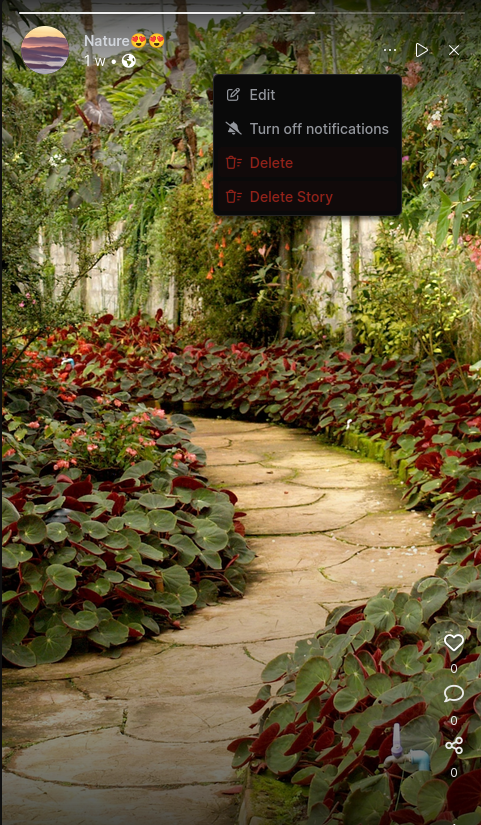
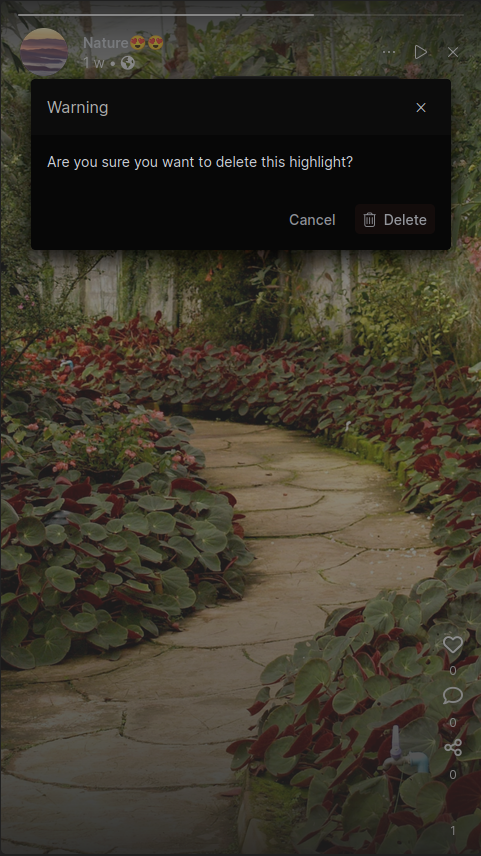
From the displayed highlights, select the desired one. Select the highlight you want to delete. Click the three-dot menu at the top-right corner.
Select Delete. A confirmation pop-up appears. Click Confirm to permanently remove the highlight.
Delete a Story from the Highlight
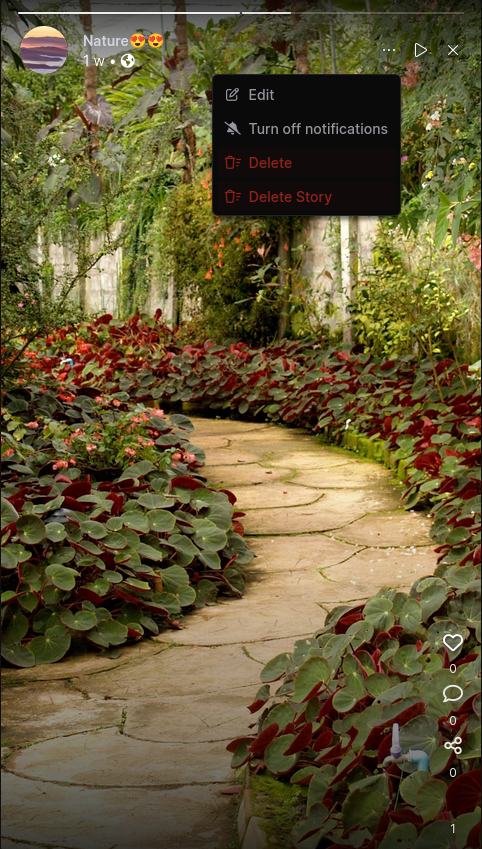
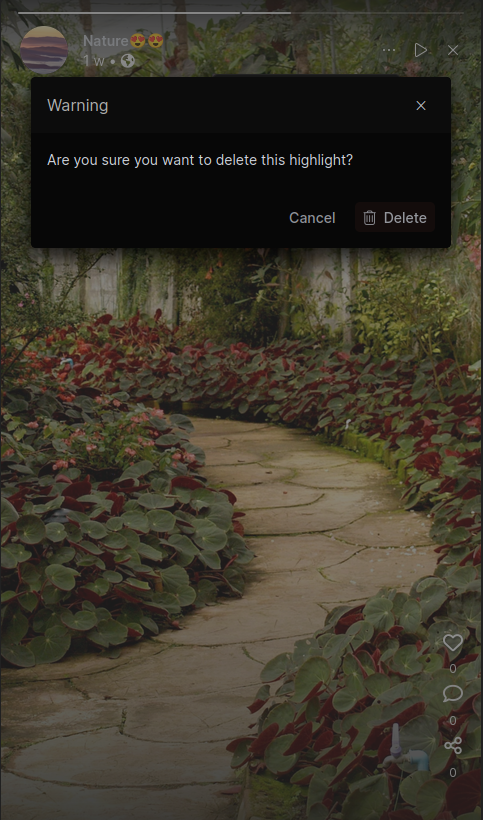
Locate the story you want to delete. Click the three-dot menu at the top-right corner.
Select Delete Story. A confirmation pop-up appears. Click Confirm to remove the story.